
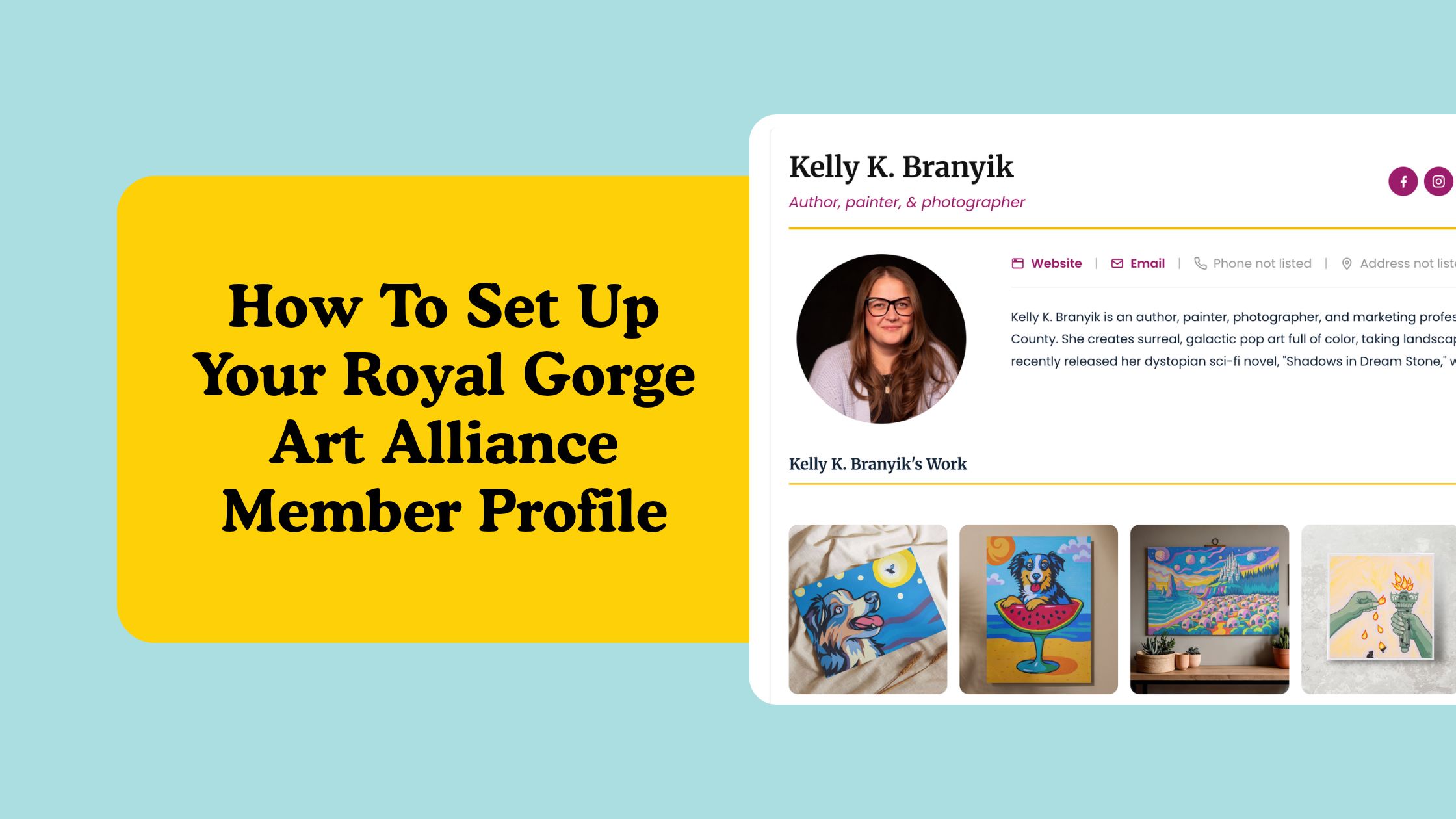
Quick answer: how do I join and update my listing?
To join the Royal Gorge Art Alliance, fill out the Become a Member form at royalgorgeartalliance.com/memberships and pay online. Once your membership is confirmed, you get an email to set your password, then you can log in anytime to update your listing in the Artist & Gallery Directory.
In short:
- Fill out the membership form and pay.
- Wait for your listing to be approved and your account email to arrive.
- Set your password from that email.
- Open your listing and click Log in to update it!
- Edit your photo, bio, contact info, social links and artwork, then click Update.
Why should I become a member?
Membership puts your work in front of people looking for local art in Fremont County, for $25 a year.
- Get found. You get a full listing in the Artist & Gallery Directory, where visitors browse local artists, galleries, theaters and dance studios.
- Show your work. Your listing includes a gallery of up to 10 photos, plus links to your website and up to 12 social platforms.
- Be easy to reach. Email, Call and Website buttons let visitors contact you in one click.
- Stay in control. Your own login lets you update your listing anytime, and changes go live right away.
- Support local arts. Your membership supports the Alliance’s work promoting the creative community across the region.
Who can join, and what does membership include?
Membership is open to artists, galleries and studios, theater groups, dance studios and other creative businesses in Fremont County, Colorado.
Every member gets a full listing in the Artist & Gallery Directory:
- A profile photo or logo
- Your name and medium (for example, “Watercolor” or “Photographer”)
- A short bio, up to 300 characters
- Website, email, phone and (optionally) address buttons
- Up to 12 social media links
- A gallery of up to 10 photos of your work
- Your own login, so you can update your listing anytime
How much does membership cost? Membership is $25 a year, whether you join as an Artist or a Friend of Artists.
How do I sign up for a membership?
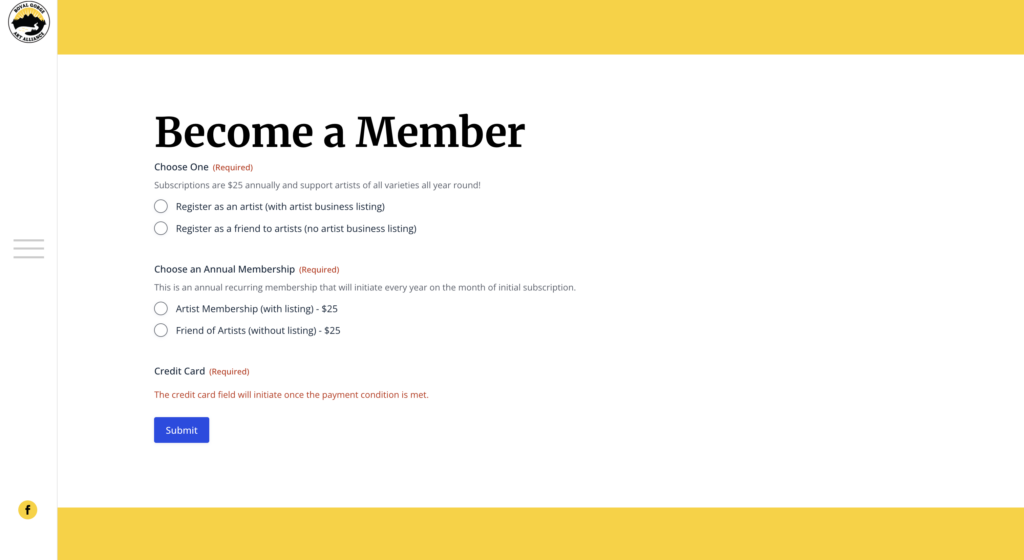
Sign up online in about 10 minutes using the Become a Member form. Have your photo, bio and links ready before you start.
- Go to royalgorgeartalliance.com/memberships.
- Enter your Artist/Business Name exactly as you want it to appear in the directory.
- Enter your medium (for example, “Painter & Photographer” or “Dance Studio”).
- Upload a profile photo or logo (JPG, under 2 MB).
- Write a bio of up to 300 characters about who you are and what you make.
- Add your website, email and phone number. These become buttons on your listing.
- Add your address only if you want it shown publicly. It’s optional.
- Paste the full web address for any social media you use, starting with https://.
- Upload up to 10 photos of your work (JPG, under 2 MB each).
- Choose your membership and pay securely by card.
- Click Submit.
Memberships are completed online. Signing up through the website keeps your membership, payment and listing together in one place, so renewing each year takes just a few clicks. If you have trouble accessing the form, email kelly@littlewavemedia.com for support.
What happens after I sign up?
After you submit, the Alliance reviews your membership, publishes your listing and creates your login. Your listing goes live only after approval, so there may be a short wait.
- We review your submission. We confirm your payment and check your listing details.
- We approve your listing. It then appears in the Artist & Gallery Directory.
- You get an account email from royalgorgeartalliance.com with a link to set your password. Check your spam folder if you don’t see it.
- Click the link and choose a password. Save it somewhere safe.
How do I log in and access my profile?
The easiest way to reach your profile is from your own listing. After you log in, the site takes you straight to your edit page.
- Go to the Artist & Gallery Directory and find your card.
- Click View Listing.
- At the bottom of your listing, click Is this your listing? Log in to update it!
- Enter the email address or username and the password from your account email.
- You land on your Edit Profile page, ready to make changes.
You can also log in directly at royalgorgeartalliance.com/wp-login.php. It takes you to the same edit page.
Already logged in? Open your listing and click Is this your listing? Click here to update it! to go straight to editing.
How do I update my listing?
Change anything on your Edit Profile page, then click Update in the bar at the bottom of the screen. Changes show on your public listing right away.
| Section | What you can change | Tips |
|---|---|---|
| Profile photo | Click your photo (or the pencil icon) to upload a new one | JPG, under 2 MB, square works best |
| Basic info | Artist/business name, medium, bio | Bio up to 300 characters |
| Contact details | Phone, email, website, address | Address is optional; leave it blank to keep it private |
| Social links | Facebook, Instagram, TikTok, Bluesky, Threads, X, Patreon, YouTube, Vimeo, Amazon, Goodreads, Other | Paste the full address, starting with https:// |
| Your work | Up to 10 photos of your work | JPG, under 2 MB each; click the ⊗ on a photo to remove it |
At the top of the page, use View public listing to see how your changes look, and Log out when you’re done.
How do I make my listing stand out?
A complete listing with a clear photo, a specific bio and strong work samples gets found and contacted more often. Follow these practices:
- Use a clear, well-lit headshot or logo. It’s shown in a circle, so keep your face or logo centered with some space around it.
- Name your medium specifically. “Watercolor landscapes” helps people find you faster than “Artist.”
- Write your bio for a first-time visitor. Say who you are, what you make, and where you’re based, in plain language. Example: “Cañon City painter creating bright, surreal pop art and landscape photography.”
- Choose your strongest pieces, up to 10. Use well-lit, straight-on photos with nothing distracting in the background.
- Keep photos under 2 MB. Most phones can resize or export a smaller copy. Smaller photos also make your listing load faster.
- Paste complete links that start with https://, and test each one after saving.
- Use an email you check regularly, since visitors contact you through the Email button.
- Share only what you’re comfortable making public. Skip the address if you work from home.
- Update it seasonally, with new work, upcoming shows or a fresh photo.
How do I manage my account?
You can reset your password and log out on your own. For login email changes or removing your listing, contact the Alliance.
| I want to… | How |
|---|---|
| Reset or change my password | On the login page, click Lost your password? and follow the emailed link |
| Log out | Click Log out at the top of your Edit Profile page |
| Change the email shown on my listing | Edit Artist Email on your Edit Profile page |
| Change the email I log in with | Contact the Alliance, and we’ll update it |
| Remove my listing | Contact the Alliance. Listings can’t be deleted from the edit page |
Your listing email and your login email are separate. Changing one doesn’t change the other.
Frequently asked questions
I signed up, but my listing isn’t showing. Why?
The Alliance reviews and approves every new listing before it appears. If it’s been longer than expected, contact us.
I never got my account email. What should I do?
Check your spam or promotions folder for an email from royalgorgeartalliance.com. If it isn’t there, use Lost your password? on the login page with the email you signed up with.
Can I sign up or pay offline?
Memberships are completed online through the membership form. Joining online keeps your membership and listing together, which makes renewing each year quick and easy. If you have trouble accessing the form, email kelly@littlewavemedia.com for support.
My photo won’t upload. What’s wrong?
Photos must be JPG files under 2 MB. Export a smaller copy from your phone or photo app and try again.
Why isn’t one of my social icons showing?
Only filled-in links appear, and each needs the full address starting with https://. Check the link on your Edit Profile page and click Update.
Do my changes need approval?
No. Updates you save show on your public listing right away.
Can someone else edit my listing?
No. Only you (and Alliance administrators) can edit your listing while logged in to your account.
